
01 · Why memory needs its own layer
The right context is often trapped in another tab.
A competitor page, a LinkedIn post, a Claude chat. Make0 Capture saves it into the Brain or canvas you choose, so every AI app you connect can use it later.
Capture from any site
Save pages, highlighted snippets, AI chats, and screenshots from any website, not just AI apps.
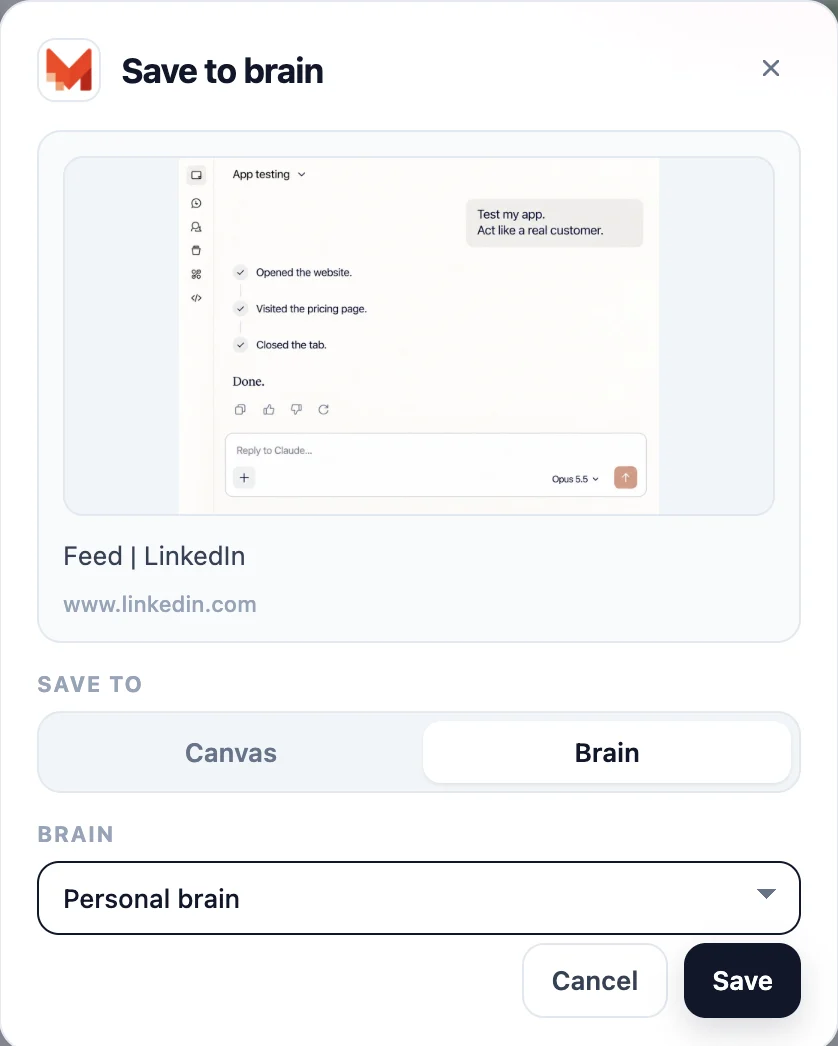
Brain or canvas
Choose where each capture goes: a Brain your agents can search, or a canvas for work in progress.
Pick the Brain
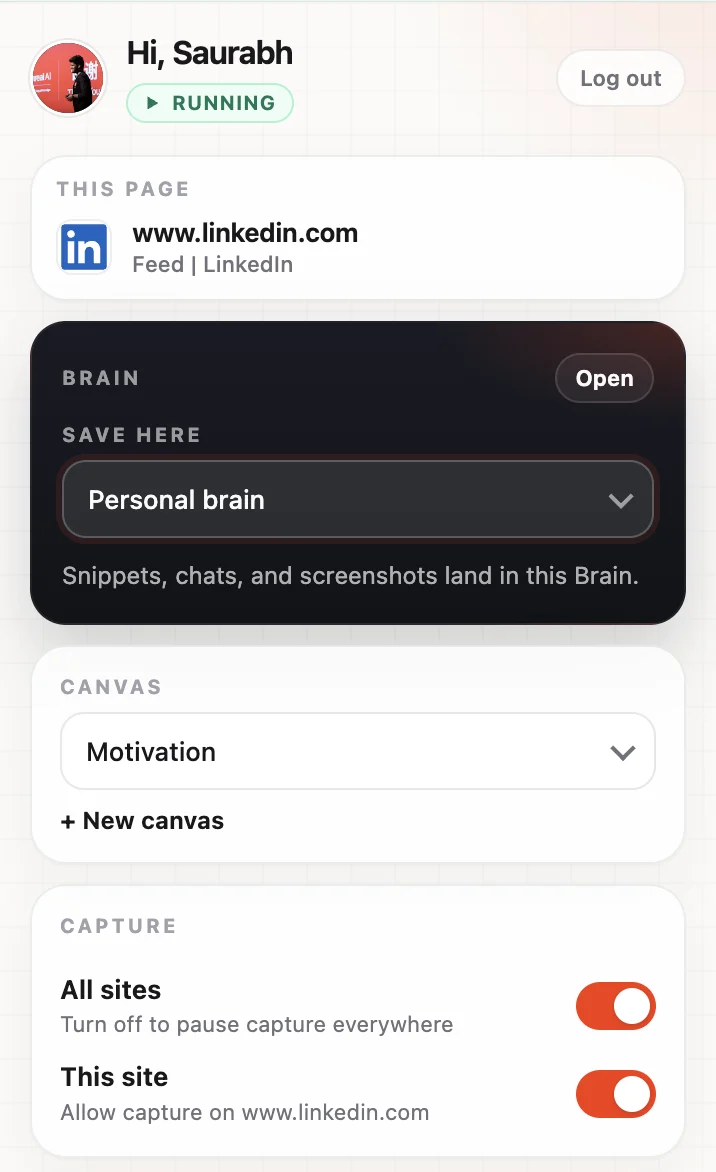
Send captures to your personal Brain or a project Brain, and change the default from the extension popup.
You control where it runs
Pause capture everywhere, or turn it on or off for a single site.
02 · How it works
Capture context in three steps.
- 01
Add Make0 Capture to Chrome
Install it from the Chrome Web Store and sign in with your Make0 account.
- 02
Choose where captures go
In the popup, pick the Brain to save into, a canvas, and which sites capture runs on.
- 03
Save from any page
Open Make0 Capture on a page, choose Brain or Canvas, and save. Every connected AI app can use it next time.
03 · Questions
AI memory, explained.
What does the Make0 Chrome extension do?+
Make0 Capture saves pages, snippets, chats, and screenshots from any website into Make0 Brain or a canvas.
Which websites does it work on?+
Any website. From the extension popup you can pause capture everywhere, or turn it off for specific sites.
Can I choose which Brain it saves to?+
Yes. Pick your personal Brain or a project Brain in the popup. Each save can also go to a canvas instead.
Does the extension share my entire Brain?+
No. Make0 Capture only saves what you capture. You stay in control of what is stored in your Brain or canvas.
 Cursor
 Grok Bot